
You may want to know how to play AVI videos on iPod, as the format is incompatible with iPod. Xilisoft iPod Video Converter (Windows and Mac) can help you do everything. It can convert popular video formats such as AVI, MPEG, WMV, DivX, MKV, MOV, RM, and VOB to iPod, and convert audios like M4A, AAC, WAV, WMA, MP2, AC3, RA, and APE audio files to your iPod or iPhone.
Step-by-step Guide: How to convert video for iPod MP4 with iPod video converter?
Step 1: Free download the iPod video format converter and save it in your computer, and then run it.
Step 2: Launch the iPod video format converter and the concise interface is as follows:
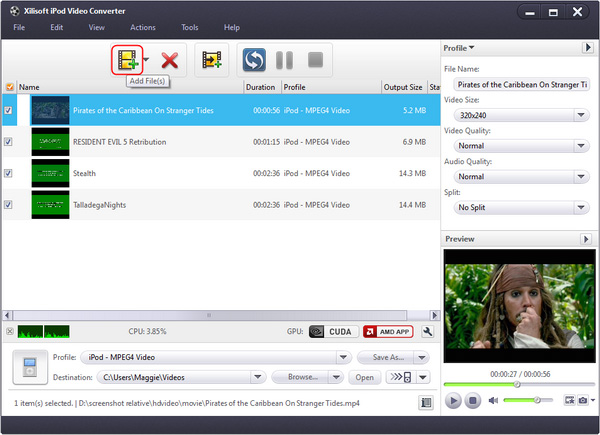
Step 3: Click Add button on the interface or or choose "Add..." in the "File" menu to select video file(s) you want to convert to iPod MP4 file:
And the selected video format files will be displayed:
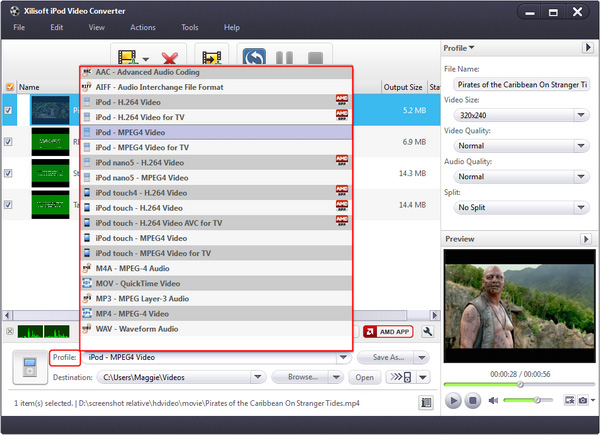
Step 4: Click Profile to select appropriate iPod MP4 format as output file. You can convert all selected files, or you can also highlight certain file you want to convert:
Tips:
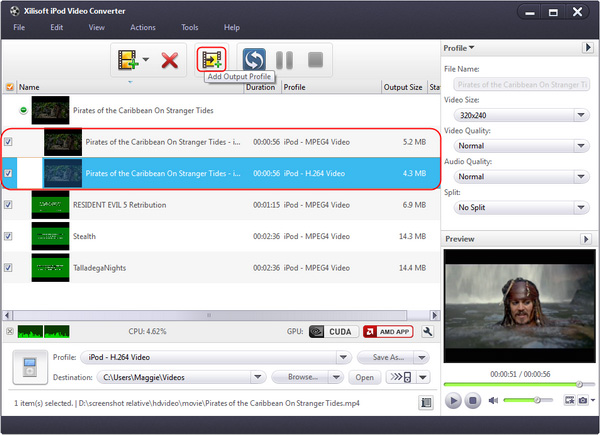
1. You can select different output formats for different files, e.g. you select iPod touch MPEG-4 480p as the output file for one file, and iPod Video2 for TV for other files, and the target area will show the format about output file:
2. It supports multithreading and batch conversion. Click "Tools > Preferences", and set the following preferences.
There are detailed output parameters on the right panel for you to set. After choosing the profile, you can adjust the settings on the right panel according to your own needs. Or just keep the default settings. And then you can click Save As button to save them as the appropriate name.
3. It supports clip or segment conversion. You can convert any clip or segment by setting the start point and duration at your will. For example, if you want to convert a clip from 00:02:00 to 00:03:20, you can set Start time as 00:02:00 and Duration as 00:01:20:
Step 5: Click Browse button to select an output path:
Step 6: Start to convert video for iPod MP4 file: now, all things are ready, just click the "Convert" button to start converting. Note: All item(s) checked will be converted. If you only want to convert certain item(s), check it/them, click Convert button, and then Xilisoft iPod Video Converter will convert them one by one.
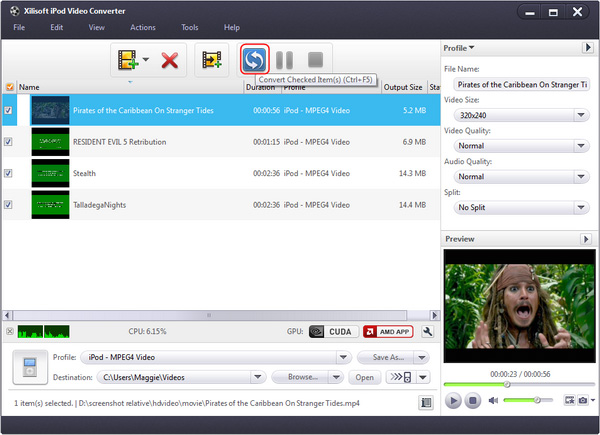
For a moment, you will successfully convert video movie to iPod MP4 file.
Tip:
When you convert videos to iPod MP4 file, convert video for iPod, you can click Play button to preview file. Please Note: This function is only for preview purpose.
Now, after convert video for iPod, how to put videos on iPod, how to put your movies on your ipod?
Click the "open" button next to the “Browse…” button to browse the output files.
Locate the converted file in the destination folder, and drag them to your iTunes. If you don't have an iTunes yet, please download it free at: http://www.apple.com/itunes/download/
By the way, you could use Xilisoft iPod Rip convert to copy music, videos, photos, podcasts from iPod to PC and vice versa. It also supports iPod to iTunes transfer. Moreover, the iPod copy software supports music and video transfer between iPhone and PC.
Now, what should you do next? Just enjoy your movies and music on your iPod to the top of your bent!


