
How to transfer video from iPod to computer?
As Apple fans, we usually need to transfer files like video, audio, photo between iPod and iTunes/PC. How to transfer video from iPod to computer? Just use iTunes, or we have another choice? Xilisoft iPod Rip is a nice iPod video transfer to help us finish the transferring jobs well.
Introduction of Xilisoft iPod Rip:
Xilisoft iPod video transfer is a sound of blessing for iTunes users who can't transfer video from iPod to pc since iTunes blocks iPod-to-computer video transfer. It can easily rip, copy or backup your iPod music, videos, photos, podcasts, ringtones, eBooks and audio book to PC. Photos and videos shot by the device are supported as well. And also, it can transfer local files on your computer to iPod. All iPhone types (iPhone, iPhone 3G, iPhone 3GS, iPhone 4, CDMA iPhone 4, iPhone 4S, iPhone 5) are supported now. All iPod types including iPod, iPod nano, iPod classic, iPod shuffle, iPod Mini, iPod touch and even the new iPod nano 7 are supported in this iPod to computer transfer software.
Note: For advanced iPod Transfer and manager software, we suggest you please download Xilisoft iPod Magic to have a try. If you are Mac user, you can download Xilisoft iPod video transfer for Mac.
This step-by-step guide will show how to transfer video from iPod to computer, copy video from iPod to PC with Xilisoft iPod video transfer. Free download trial version is available.
Step 1: Download the iPod to computer transfer software, install and run it.
Step 2: Connect iPod to computer with USB cable.
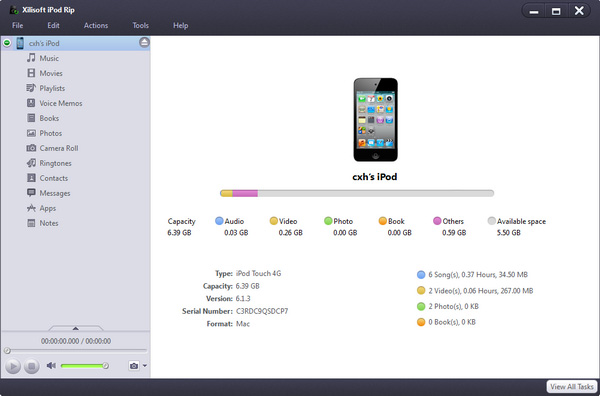
All information about your iPod will be displayed on the main interface.
Step 3: Transfer.
With 2 simple steps you will complete the iPod to computer transfer:
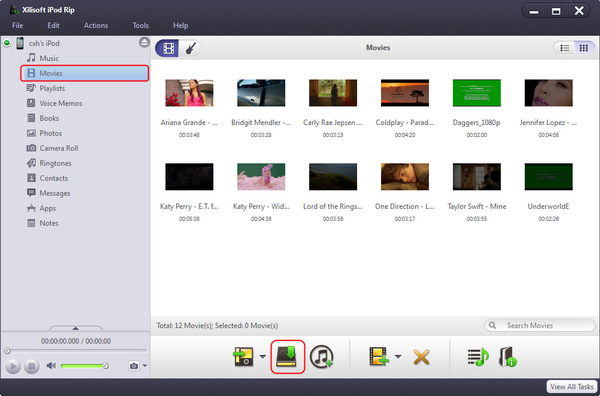
- Click Audio/Playlist that you want to backup and check video files you want to copy to computer.
- Click the "Export checked files to local" button to start transferring.
Ok, done.


