How to Convert MOV to AVI (DivX), MOV to MPEG?
Xilisoft Video Converter is a MOV to AVI/MPEG Converter which can convert MOV to AVI (DivX), MOV to MPEG with ease. The MOV Converter supports batch conversion, multithreading, and converting any MOV AVI MPEG clip(s). When convert MOV to AVI or MPEG, you can select the video and audio codec, set the output parameters.
In addition, the MOV to AVI Converter and MOV to MPEG Converter can rip between other video and audio formats such as iPod, PSP, MP4, MOV, DVD, VCD, SVCD, 3GP, M4A, MP3, AC3, etc. You can download it from here.
Now let's focus on how to convert MOV to AVI, MOV to MPEG with the MOV video converter.
1. Start up Xilisoft Video Converter
2. Select the target to decode
3. Set advanced parameters
4. Choose the destination
5. Start the MOV to AVI conversion
1. Start up Xilisoft Video Converter
Launch Xilisoft Video Converter, add your MOV file by clicking "Add" in the File menu or in the main interface.
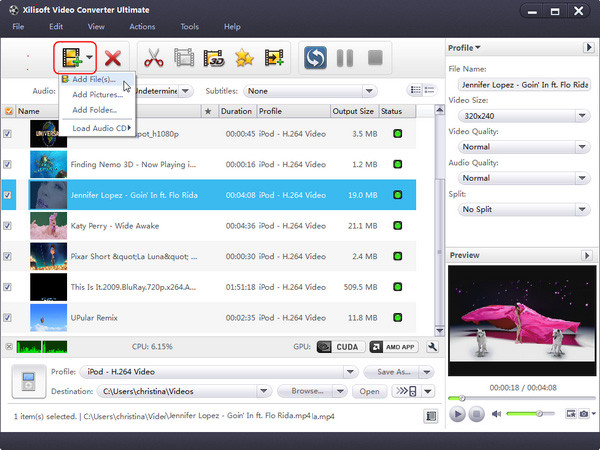
2. Select the target to decode
By highlighting the MOV file, you can see its info including video codec and audio codec in the recording area.
In "Profile" drop down list box, you may select output format. The software allows setting different output formats according to different files. For example, I may set the AVI as output format of the first MOV file, the MPEG as output format of the second MOV one.
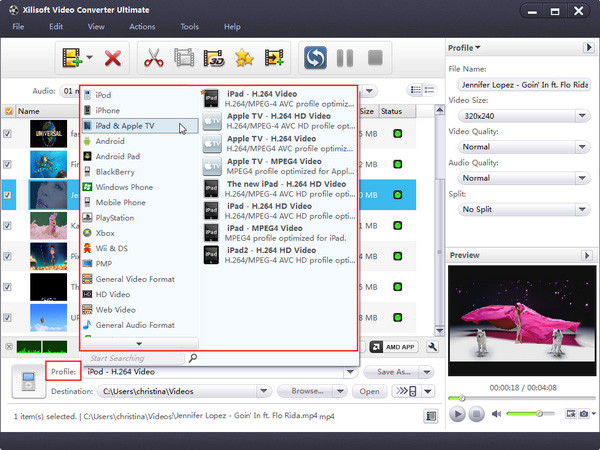
Tips: by selecting DivX format (*.avi) in "Profile"drop down list box, the software will produce .avi file using DivX encoder.
3. Set advanced parameters
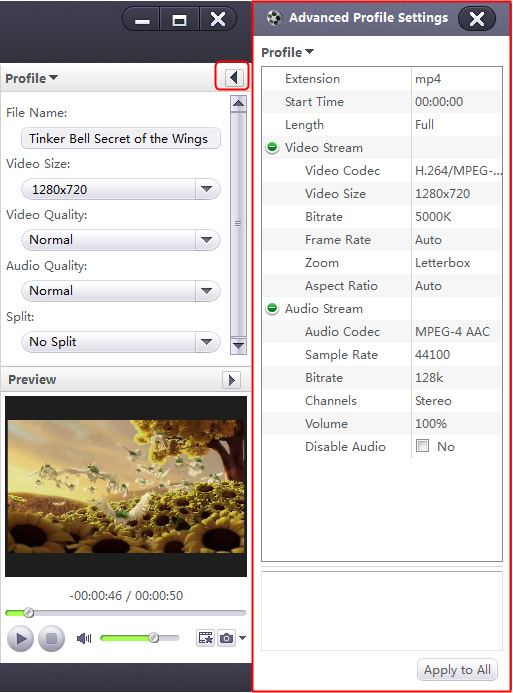
After selecting certain output format, the right column will show its general standard. By clicking certain settings such as "Start Time", "Video Size", "Video/Audio Bit rate" and so on, you may set it.
4. Choose the destination
Now let's select the output folder by clicking the "Browse..." button or directly enter a path in "Destination" drop down list box.

5. Start the MOV to AVI conversion
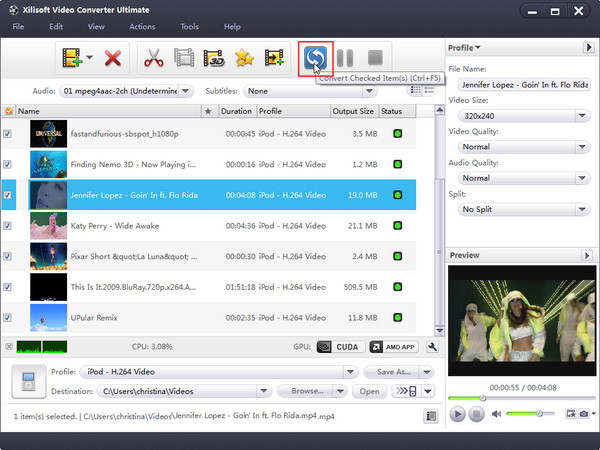
Finally, click "Encode" in the File menu. After a successful conversion, the info "Completed" will show.
If you're interested in this video converter program, please visit: Xilisoft Video Converter.
Add New Comment
Knowledge Base
- Convert VOB to WMV
- Convert YouTube to iPhone ringtone
- Convert FLV to 3GP
- Convert AVI to MP4
- Transfer files from PC to iPhone
- Transfer video from iPod to computer
- Convert SWF to MP4
- Convert MPEG to MP3
- Convert video to GIF image files
- Convert MP3 to M4R iPhone ringtone
- Convert WMV to FLV
- Burn AVI to DVD
- Record your Voice and make your Songs
- Convert RMVB to MP4
- Copy songs from iPod to Mac computer
- Convert AIFF to MP3
- Burn WMV to DVD
- Convert FLV to iPhone
- Manage iPhone without iTunes
- Convert MOV to AVI (DivX), MOV to MPEG
- Convert AVCHD to AVI
- Convert M4V to AVI
- Burn video files to DVD
- Convert FLV to MP4
- Convert HD movie to SD video
- Join video files on Mac
- Extract audio from DVD
- 5 Tips to Make Successful Video Conversion
- Convert M4V to DVD
- Use the M4R converter
- Make free ringtone for iPhone on Mac
- Cut videos/movies on Mac
- Convert YouTube to MOV
- Convert MKV to AVI, MKV to MPEG
- Put videos to iPod
- Convert MP4 to FLV
- Rip blu ray to MP4
- Convert FLV to MOV
- Convert WAV to MP3
- Convert RM to WMV
- Convert MOV to MP3
- Convert MOV to WMV
- Convert DVD to MP3
- Transfer iPhone music
- Convert XviD to AVI
- Convert MP4 to AVI on Mac
- Convert MKV to 3GP
- Convert HD video to Apple TV
- Convert WMV to AVI
- Convert RMVB to AVI
- Rip DVD movie to MP4
- Convert MP4 to SWF
- Save YouTube videos
- Convert MOV to AVI
- Convert YouTube to MP4
- Convert MPEG to MP4 on Mac
- convert FLV to PSP video files
- Split movies on Mac
- Rip Blu-ray disc
- Convert video to DPG
- Convert MP4 to MPEG on Mac
- Download and convert YouTube videos
- Convert FLV to DVD
- Convert RMVB to DVD
- Rip DVD to AVI


